Configuration Dashboard
The CruiseKube dashboard provides a web interface for monitoring and managing your resource optimization settings.
Hosted demo: Explore a static build of the UI at truefoundry.github.io/cruiseKube-frontend before you install.
Accessing the Dashboard
The dashboard is exposed as a Kubernetes Service and can be accessed in several ways:
Using kubectl port-forward
You will be prompted to sign in. Credentials come from the Helm-managed controller admin Secret; see Login & authentication.
Using ingress (if configured)
If you have configured an ingress controller and exposed the dashboard via ingress, you can access it using the configured domain.
Overview
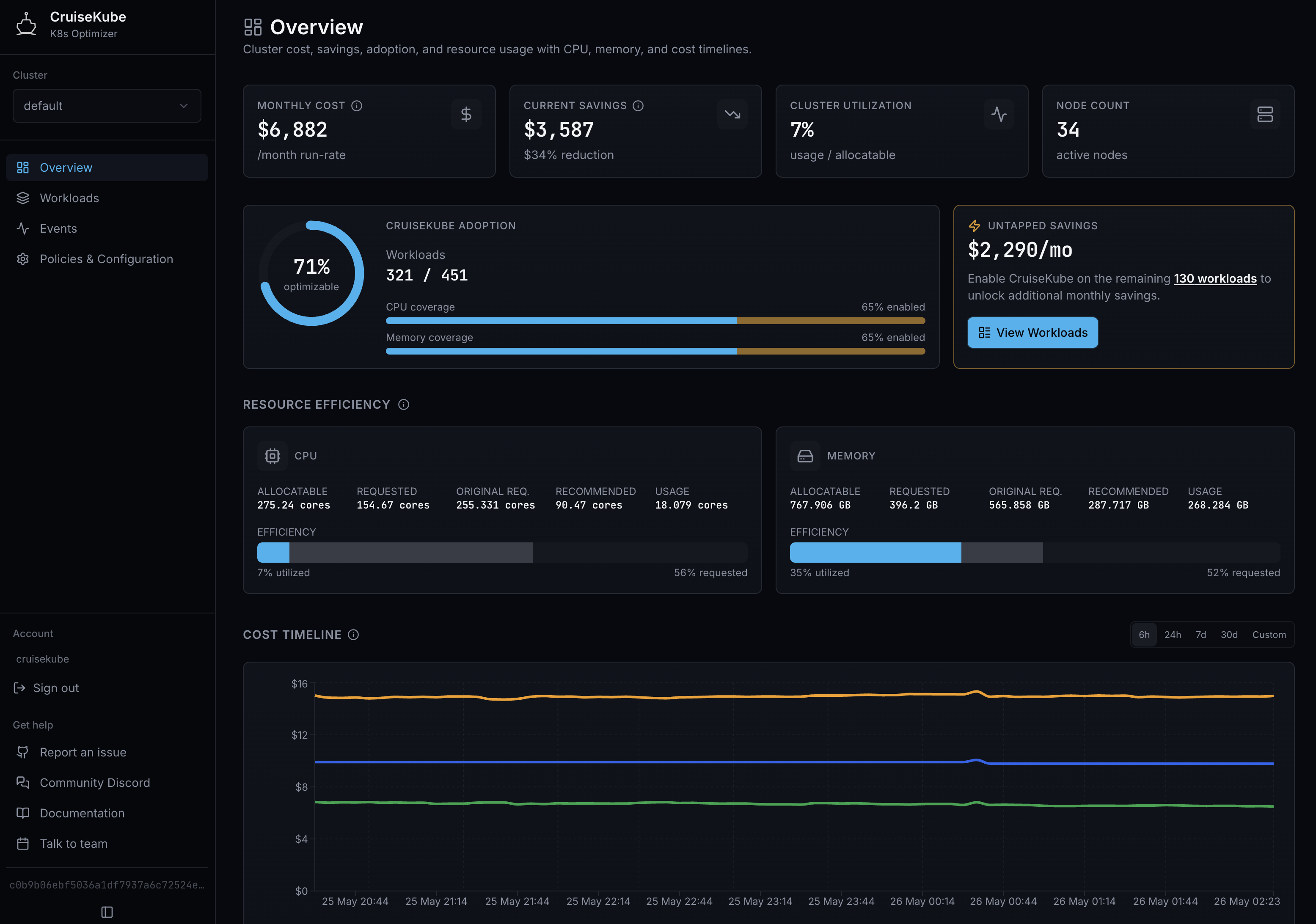
The main Dashboard summarizes cluster cost and savings, adoption (how many workloads are optimizable and covered by CruiseKube), and resource efficiency (allocatable, requested, original vs recommended requests, and live usage) for CPU and memory. Use the time range control at the bottom to scope utilization-style metrics.
Workloads & recommendations
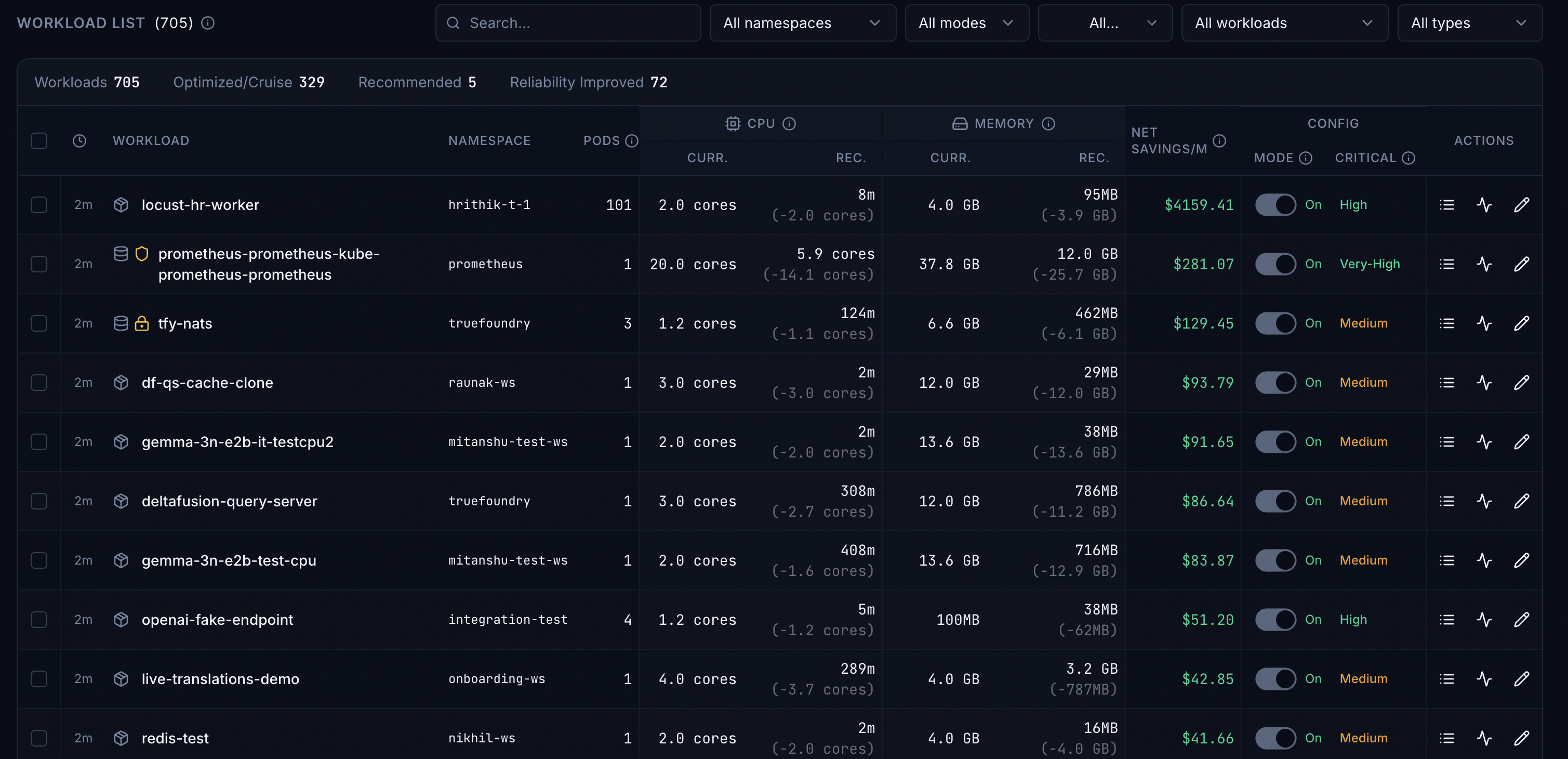
The Workloads view lists workloads with filters, summary tabs (optimized, recommended, reliability improved), and per-row metrics: current vs recommended CPU and memory, estimated monthly savings, mode (Recommend vs Cruise), criticality, and actions.
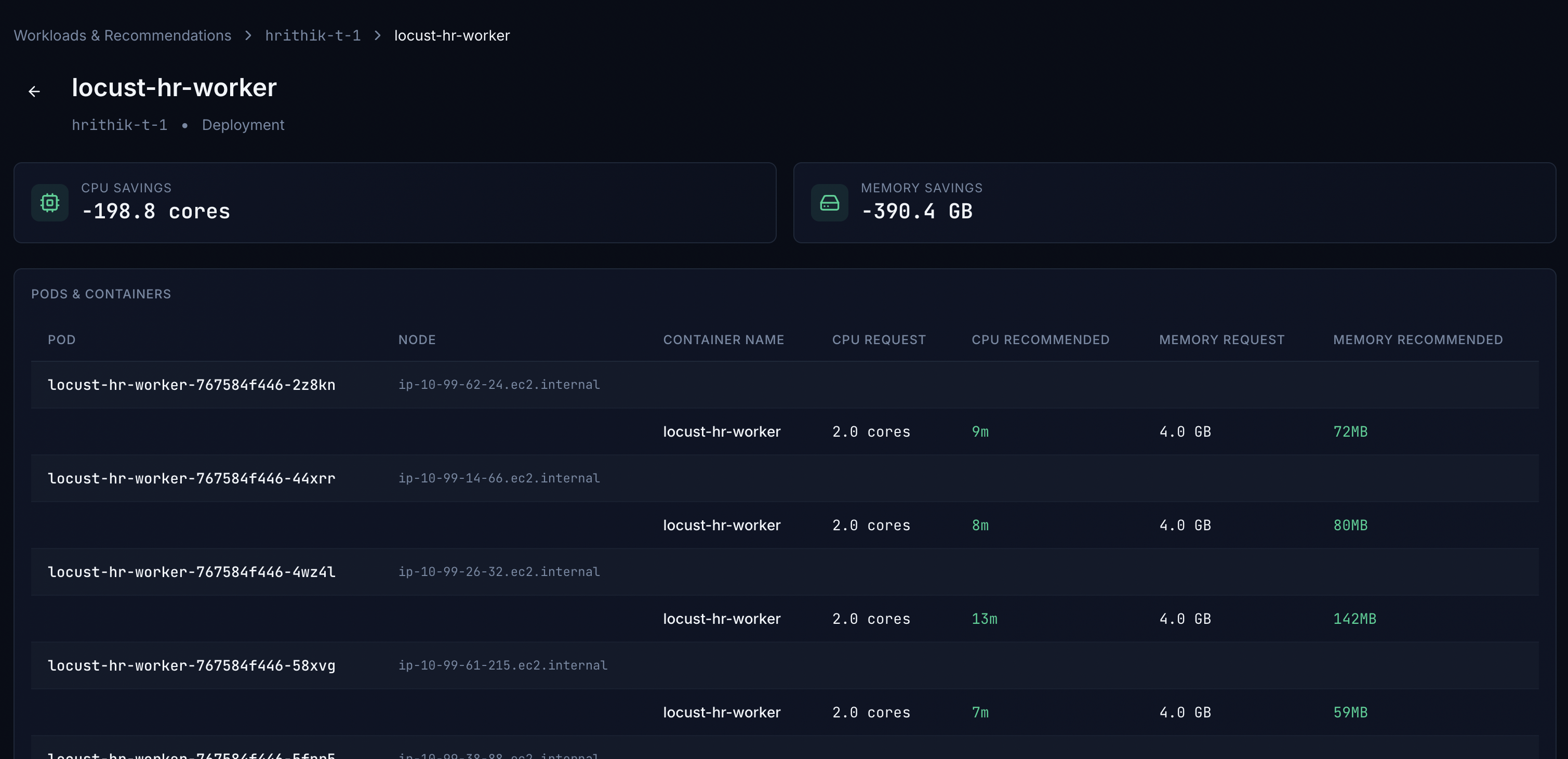
Open a workload to see aggregate savings and a Pods & containers table comparing each pod’s requests to recommendations.
Events
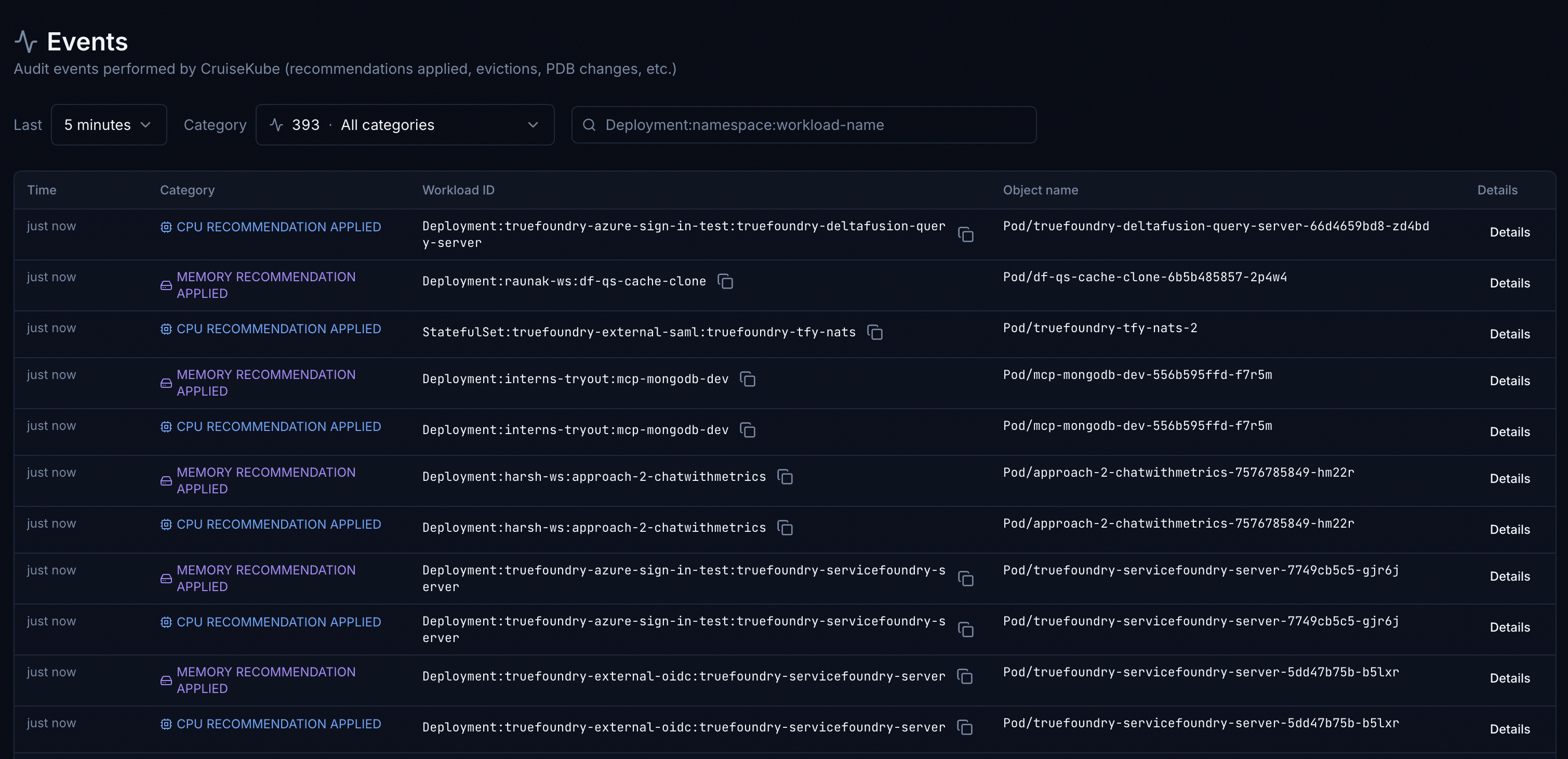
Events is an audit-style view of actions CruiseKube has performed (for example CPU or memory recommendations applied), with time and category filters and search by workload identifier.
Policies & configuration
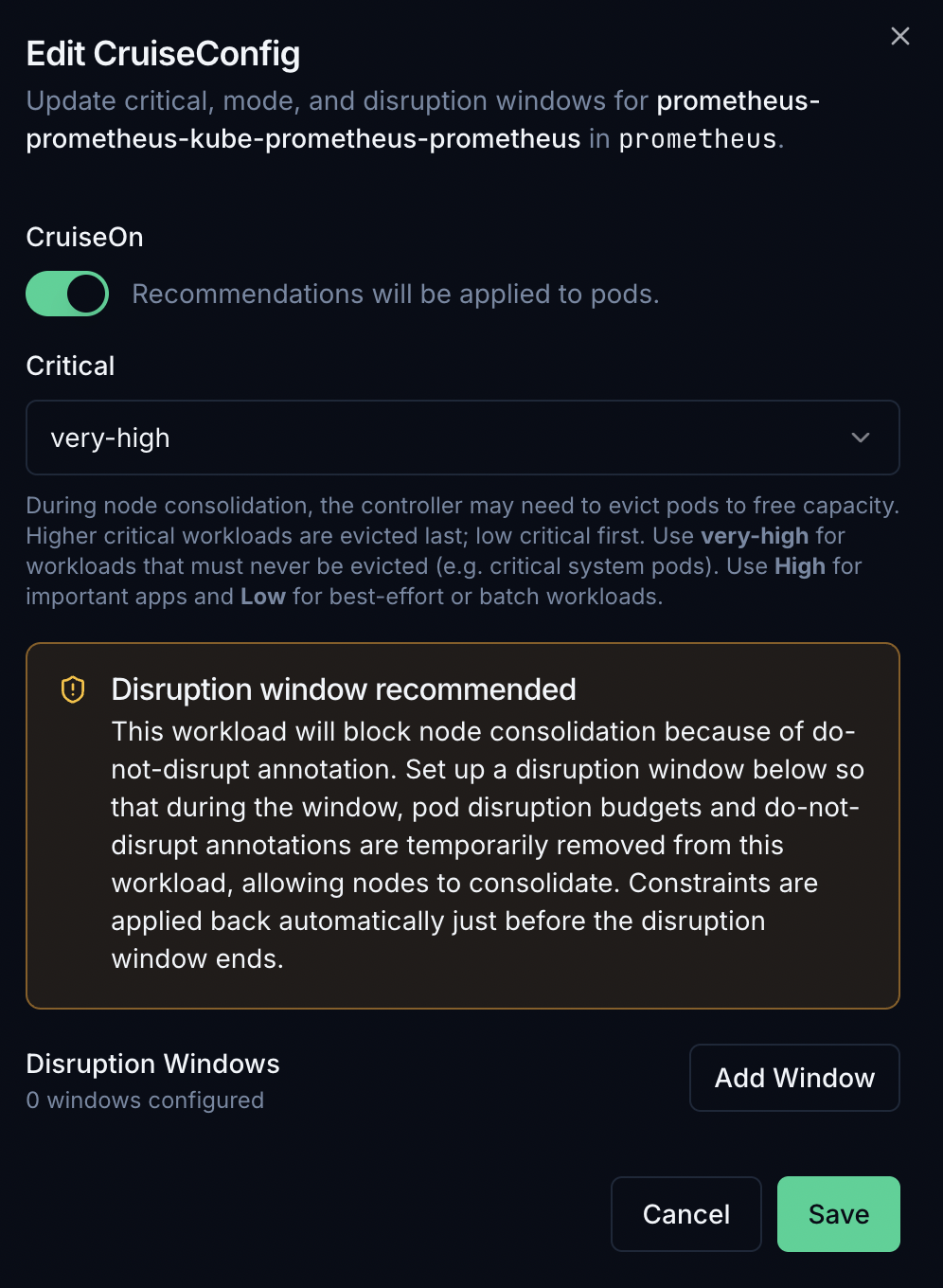
Open Policies & Configuration in the sidebar to manage CruiseKube mode & priority per workload (and other policy tabs such as Prometheus-related settings where available).
Per-workload mode and priority
Each workload uses a Recommend / Cruise toggle and a priority dropdown:
- Recommend — CruiseKube computes recommendations and shows them in the UI; it does not apply in-place resource changes for that workload.
- Cruise — CruiseKube applies optimizations for that workload according to controller schedules and safety rules.
- Priority — Controls eviction ordering when a node cannot fit the optimized set (low → evicted first; No-eviction never evicted for optimization). Single-replica and StatefulSet workloads often default to safer tiers—see Policies & modes.
Mode and priority appear in the workload list (screenshot above) and in Policies & Configuration (screenshot in the previous section).
Roll out conservatively by leaving workloads on Recommend until you validate recommendations, then switch critical cohorts to Cruise—see Installation and Policies & modes.